
Before you join a Huddle in Sync, you can review and adjust your device, audio, and meeting preferences from the pre-join lobby. Pre-lobby settings help ensure your camera, microphone, speaker, and meeting settings are ready before the conference begins.
Requirements and notes
Review the following information before joining a Huddle from Sync:
- Available settings may vary depending on your device, browser, operating system, and account permissions.
- Your browser or device may prompt you to allow access to your camera and microphone before you can use audio and video features.
- Some advanced meeting options may only appear after the Huddle has started.
Access Pre-Lobby Settings in Sync Huddle
You can launch a new Huddle video conference directly from the Sync desktop or browser app.
- Log in to the Sync desktop or browser app.
- Click the Huddle icon in the top right corner.
- (Optional) Expand your Huddle view.
- Click the gear icon in the bottom right corner of the Huddle window to open the pre-lobby settings.

The pre-join lobby appears before you enter a Huddle meeting. From this screen, you can review meeting details, test your devices, and configure your personal meeting preferences.
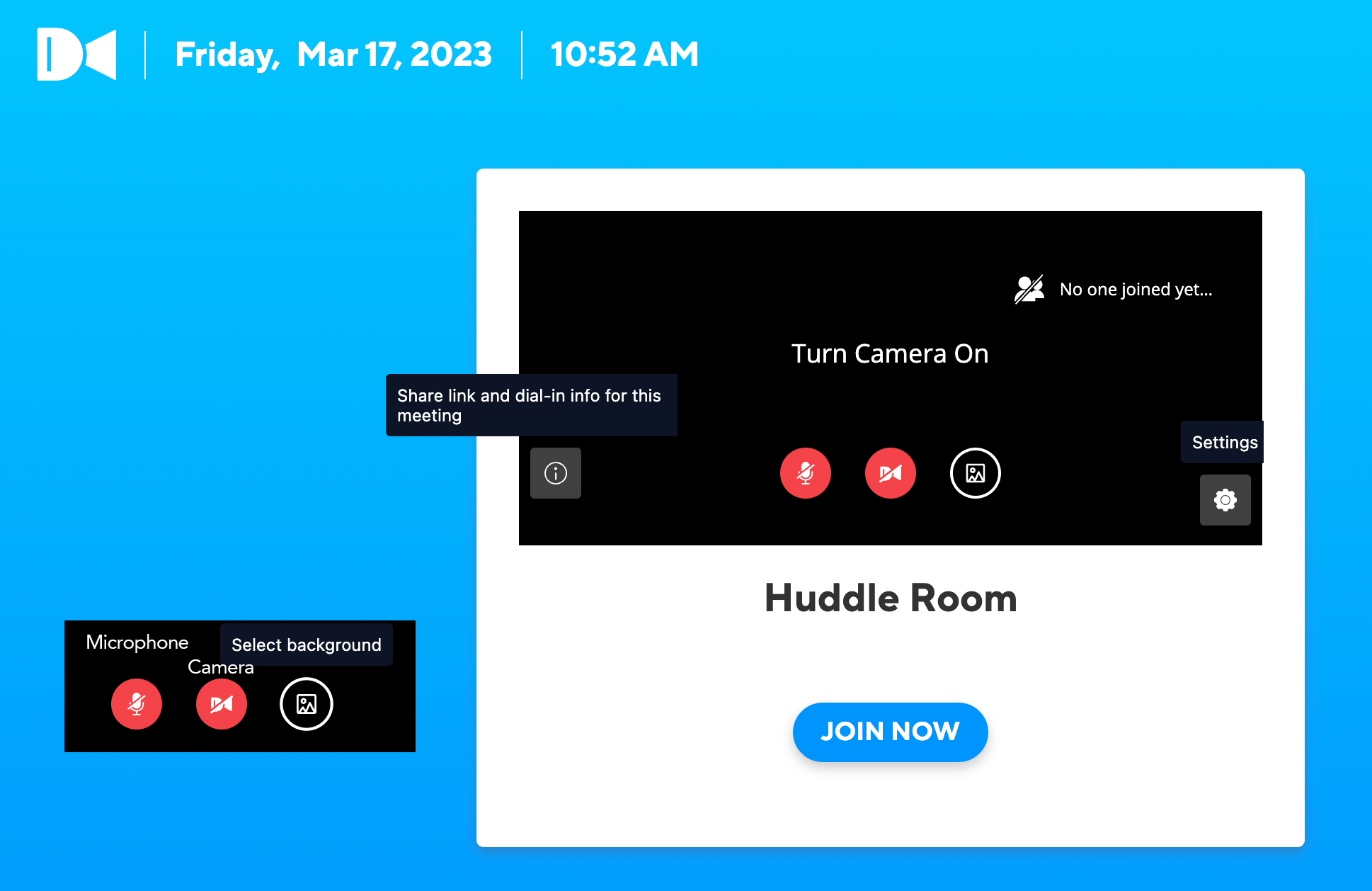
View meeting details
Before joining the meeting, you can open the meeting information panel to review and copy conference details.
- In the pre-join lobby, click the Information icon.
- Review the available meeting details.
- Use the available options as needed:
- Copy All to copy the full meeting information.
- More numbers to open a list of international dial-in numbers in a new browser tab.


Configure your camera and background
Before joining a Huddle, you can turn your camera on or off, choose a camera source, and manage your background settings.
- Turn your camera on or off.
- Select a different camera if multiple devices are connected.
- Mirror your camera preview if you prefer to view yourself as a mirror image.

- Add a virtual background or apply background blur.
- Upload a custom image by selecting + Add background.

Configure your microphone and speaker
Use the pre-join lobby to confirm that your audio devices are working properly before you enter the meeting.
- Mute or unmute your microphone.
- Select a microphone input device.
- Select a speaker or audio output device.
- Test and adjust your volume using your device settings.

Manage notification settings
Huddle notification settings let you control which meeting events trigger audible alerts.
- Open the Huddle pre-join lobby or join a Huddle.
- Click the Settings icon in the bottom-right corner of the meeting window.
- Select Notifications from the left-hand menu.
- Enable or disable available notification sounds, such as:
- Incoming message
- Participant joined
- Participant left
Each notification type can be managed independently.

Review keyboard shortcuts
Huddle includes keyboard shortcuts that can help you navigate meetings more efficiently.
For a full list of Huddle keyboard shortcuts, please refer to: Huddle Keyboard Shortcuts
Create or manage polls before the meeting
If polling is available for your account, you can prepare poll content before or during a Huddle meeting.
Polls are typically managed from the meeting chat area once the meeting is active.

Connect your Google Calendar and contacts to Sync
You can connect your Google or Microsoft account to Sync, so your calendar and contacts are available alongside your Huddle experience. Once connected, your meetings and synced contacts can appear within Sync for easier access.
For more information, refer to Integrate your Google Calendar and Contacts